








-
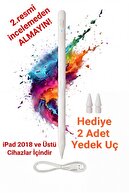
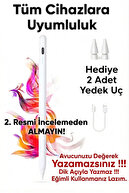
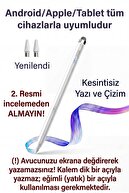
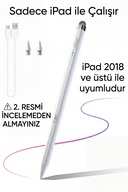
!!! THERE IS NO PALM DETECTION, IF YOU TOUCH YOUR HAND ON THE SCREEN, IT DOES NOT WRITE INTERMITTENTLY!!!
-
TABLET SETTINGS (Do This if Not Writing Pencil)
-
On some tablets, factory or retrofitted settings may prevent the use of external pens. Before using the pen, you should turn off the following settings according to your device:
-
For 🍏 Apple iPad Users:
-
iPad is set to block touches other than the original stylus.
-
Go to Settings > Apple Pencil menu
-
TURN OFF the "Only Draw with Apple Pencil" option.
-
If you have an original Apple Pencil pre-connected to your iPad, disconnect this stylus from the Bluetooth settings ("Forget this device").
-
For 🤖 Samsung, Huawei, Honor and Android Tablets:
-
If "Pen Only Mode" is on on your device or the original pen is connected, this pen will not work.
-
Disconnect: If there is an original pen (S-Pen, etc.) that comes with the tablet, disconnect it from the Bluetooth settings.
-
Application Permission: In the note application you are using (Samsung Notes, etc.), TURN ON the "Allow drawing with your finger" feature in the settings in the upper right corner. If there is a "Draw only with S-Pen" setting, TURN IT OFF.
-
The product works smoothly on all touch devices. If it does not work, there must be a problem in the settings of your device.
-
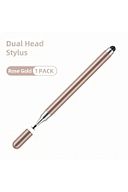
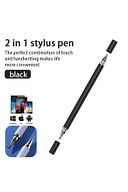
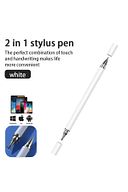
Combining two different functions in one device, the 2 in 1 Stylus Disk Pen provides ease of use on your tablets and phones.
-
It appeals to a wide range of users thanks to its compatibility with devices with Android operating system.
-
Rose offers a stylish and professional look with color options
-
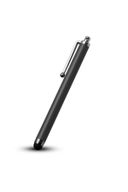
can be conveniently used on any type of touchscreen.
•
•
•
•
•
•
•
•
•
•

favorite
Favoritesaccount_circle
Sign Inshopping_bag
Cart Catalogue
