







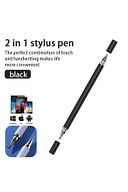
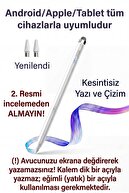
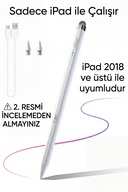
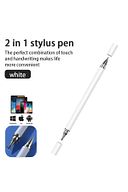


-
⚠️ IMPORTANT INFORMATION: Installation and Charging Warning
-
This item you have purchased has universal compatibility technology. In this way, your tablet imitates the sensitivity of your finger while detecting the pen. Please read the following setting and charging instructions carefully so that your product can operate for a long time without deterioration.
-
🔌 1st CHARGING RULE (Please Note!)
-
The battery of this pen has a delicate structure. New generation fast charging adapters (Apple 20W, Samsung 25W/45W, etc.) prevent the pen from charging or burn the battery and BREAK the device because it gives high voltage.
-
❌ Never Use: Phone/tablet adapters with Fast Charge.
-
✅ Recommended Charging Method: The healthiest method to charge the pen is with PC or Laptop USB ports.
-
✅ Alternative: If you are going to plug in, use only old-style, low-current (Maximum 5V 1A or 5V 2A) standard charging heads.
-
⚙️ 2 nd TABLET SETTINGS (Do This if Not Writing Pen)
-
On some tablets, factory or retrofitted settings may prevent the use of external pens. Before using the pen, you should turn off the following settings according to your device:
-
For 🍏 Apple iPad Users:
-
iPad is set to block touches other than the original stylus.
-
Go to Settings > Apple Pencil menu
-
TURN OFF the "Only Draw with Apple Pencil" option.
-
If you have an original Apple Pencil pre-connected to your iPad, disconnect this stylus from the Bluetooth settings ("Forget this device").
-
For 🤖 Samsung, Huawei, Honor and Android Tablets:
-
If "Pen Only Mode" is on on your device or the original pen is connected, this pen will not work.
-
Disconnect: If there is an original pen (S-Pen, etc.) that comes with the tablet, disconnect it from the Bluetooth settings.
-
Application Permission: In the note application you are using (Samsung Notes, etc.), TURN ON the "Allow drawing with your finger" feature in the settings in the upper right corner. If there is a "Draw only with S-Pen" setting, TURN IT OFF.
-
💡 -General Tip:
-
This pen does not require a Bluetooth connection. You can use it directly by pressing the key and turning on the light. If it does not write even though the light is on
-
the reason for the problem is that there is a 99% chance that the above tablet settings have not been made.
-
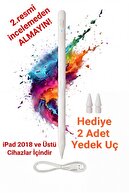
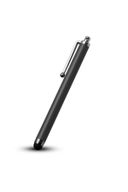
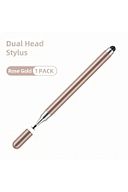
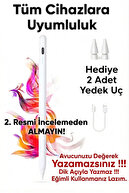
Universal Touch Pen - Rechargeable Lightweight Stylus for All Devices A lightweight and ergonomic stylus pen designed for a seamless writing and drawing experience on all your tablets, phones and touchscreen devices.
-
Key Features and Advantages Plug and Play Ease: No Bluetooth connection required.
-
It is ready for immediate use by clicking the power button on the device once.
-
The blue indicator light indicates that it is active.
-
Advanced Battery and Charge Management: Battery Status Indicators: You can easily monitor the battery level with 3-stage blue LED indicators on the pen: 3 Light Bright: 70%-100% 2 Light Bright: 30%-70% 1 Light Bright: 5%-30% 1 Light Blinking: Below 5%, it needs to be charged.
-
Fast Charging, Long Use: Reaches approximately 8 hours of sustainable use time with 13 minutes of fast charging.
-
Full charging time: Only 8-13 minutes.
-
Auto Power Off: Automatically power off to save energy when not in use for 5 minutes.
-
Charging Method: You should only charge your Type-C pen with a 5V 2A adapter or your computer's USB port.
-
Ergonomic and Lightweight Design: Lightness: It weighs only 14 grams.
-
Thanks to its aerospace-grade aluminum alloy body and skin-friendly texture, it does not tire your fingers even in long-term use.
-
(Comparison: It is more comfortable than 20g pens).
-
Magnetic Adhesion: Compatible devices (iPad Mini etc.
-
) makes it easier to carry by magnetically adhering to the edge.
-
Easily Replaceable Parts: Cover and Tip Replacement: Universal mesh pen cover and replacement pen tips can be easily disassembled and installed.
-
No Palm Detection: This pen does not have palm rejection.
-
When writing or drawing, you need to make sure that your hand does not touch the screen.
•
•
•
•
•
•
•
•
•
•

favorite
Favoritesaccount_circle
Sign Inshopping_bag
Cart Catalogue
