


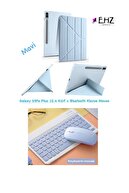

-
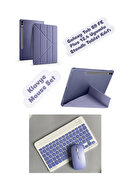
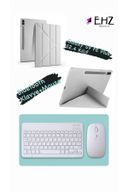
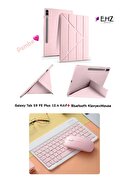
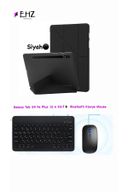
Galaxy Tab S9 FE Plus 12
-
Tablet Case with 4 Compatible Stands +Bluetooth Keyboard Mouse Overview Report product Product features: 1
-
Wide compatibility: Use with four major operating systems that support Bluetooth (iOS, Android, Mac OS, and Windows) compatible with iPads, iPhones, and Bluetooth-enabled tablets, laptops, and mobile phones, such as iPad air, iPad mini, iPad Pro, iPhone Xs Max, etc.
-
(Non-Bluetooth devices must purchase a Bluetooth receiver on their own) 2
-
ULTRA-THIN, lightweight and portable: This lightweight Bluetooth keyboard is designed for anyone who needs a portable capable keyboard for work or gaming and is especially suited for business travel
-
– 3
-
Rechargeable and automatic sleep mode: Universal wireless bluetooth keyboard uses built-in lithium battery, can be easily charged via USB cable, no need to replace the battery
-
Built-in rechargeable battery is incredibly long lasting, standby time is about 6 months between charges
-
Bluetooth wireless keyboard can automatically enter sleep mode to save energy
-
4
-
Stable connection: Advanced Bluetooth technology provides a wireless connection with a working range of 10 meters
-
But for desktop laptop without bluetooth function, you need to install a third-party bluetooth adapter (not included) to install the bluetooth driver before use
-
5
-
By typing comfortably and quietly: Whisper-quiet, low-profile keys bring a whole new level of comfort to your fingertips
-
Plus, keep your most used functions and media controls with dedicated hot keys to windows closer than ever
-
How to connect Bluetooth keyboard connection method: 7 ''/10'' keyboard connection: 1
-
" on keyboard
-
on"
-
Turn on the -button 2
-
On Keyboard "
-
link"
-
Press and hold the - key for 2 seconds 3
-
Turn on the Bluetooth device you need to connect to 4
-
"
-
on my device"
-
Bluetooth 3
-
0 keyboards "
-
find and"
-
connected "
-
Click Mouse connection modes: Bluetooth connection mode: turn on the 'on' button on the mouse, then turn on the Bluetooth device to be connected, find 'BT mouse' on the 'device' device and then click 'connected'
•
•
•
•
•
•
•
•
•
•

favorite
Favoritesaccount_circle
Sign Inshopping_bag
Cart Catalogue
